
In this article we will go over how to setup your Finix PAX (A800) terminal and how to activate it with Archy.
Note: Do not use the QR Code on the box for instructions on how to set up your terminal.
Step 1. Unbox your Archy Terminal
- Connect the power adapter or USB-C cable to a power source.
- Charge the device to at least 70%.
-
Once the device is charged, press and hold the power button down for 2 seconds until the LCD backlight turns on.
Power On Your Archy Terminal
- Connect to the wifi/internet in your office. See the steps below to complete this process.
Connecting Your Terminal to the Wifi/Internet
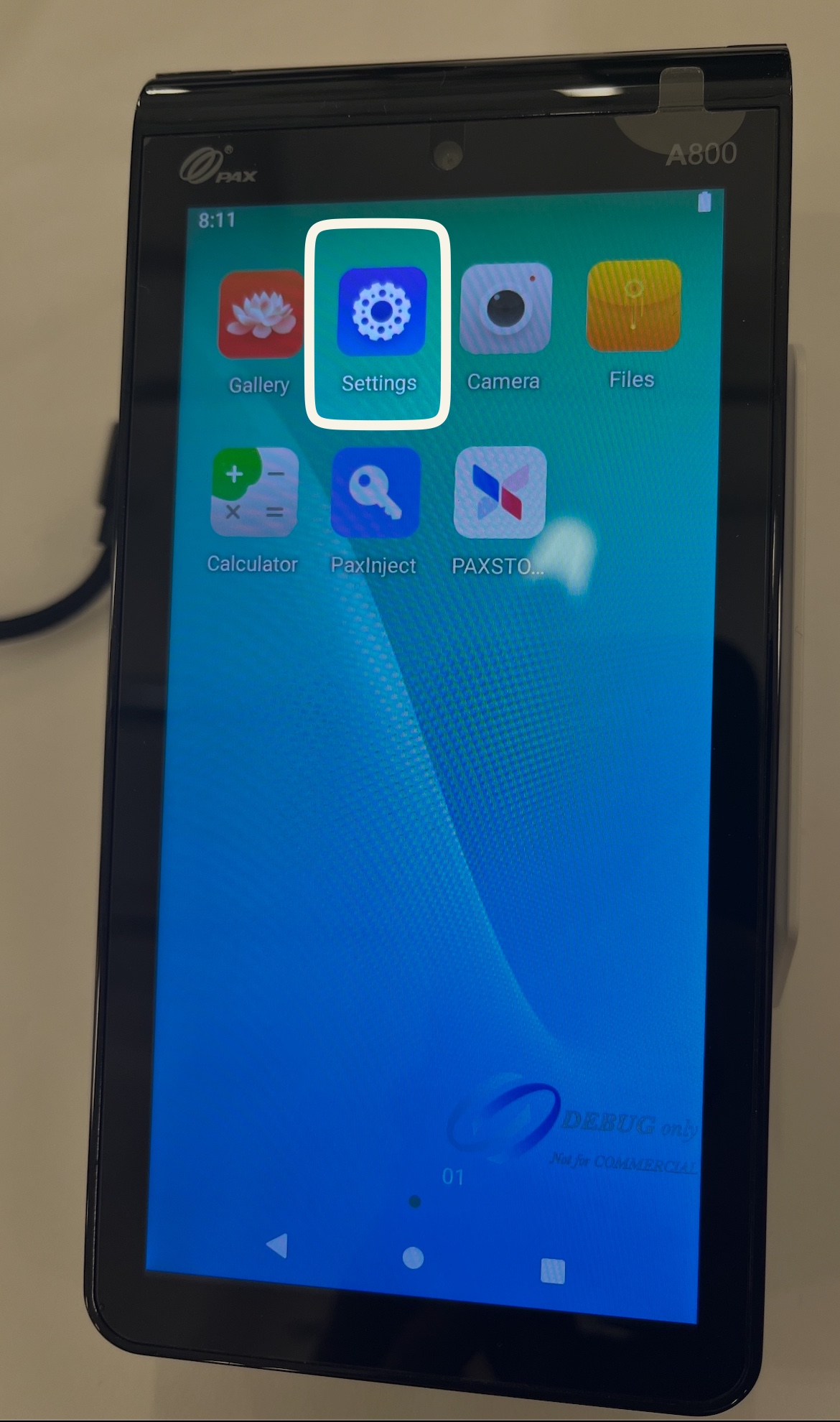
Step 1: Connect your device to the Internet. Click on the Settings gear icon.
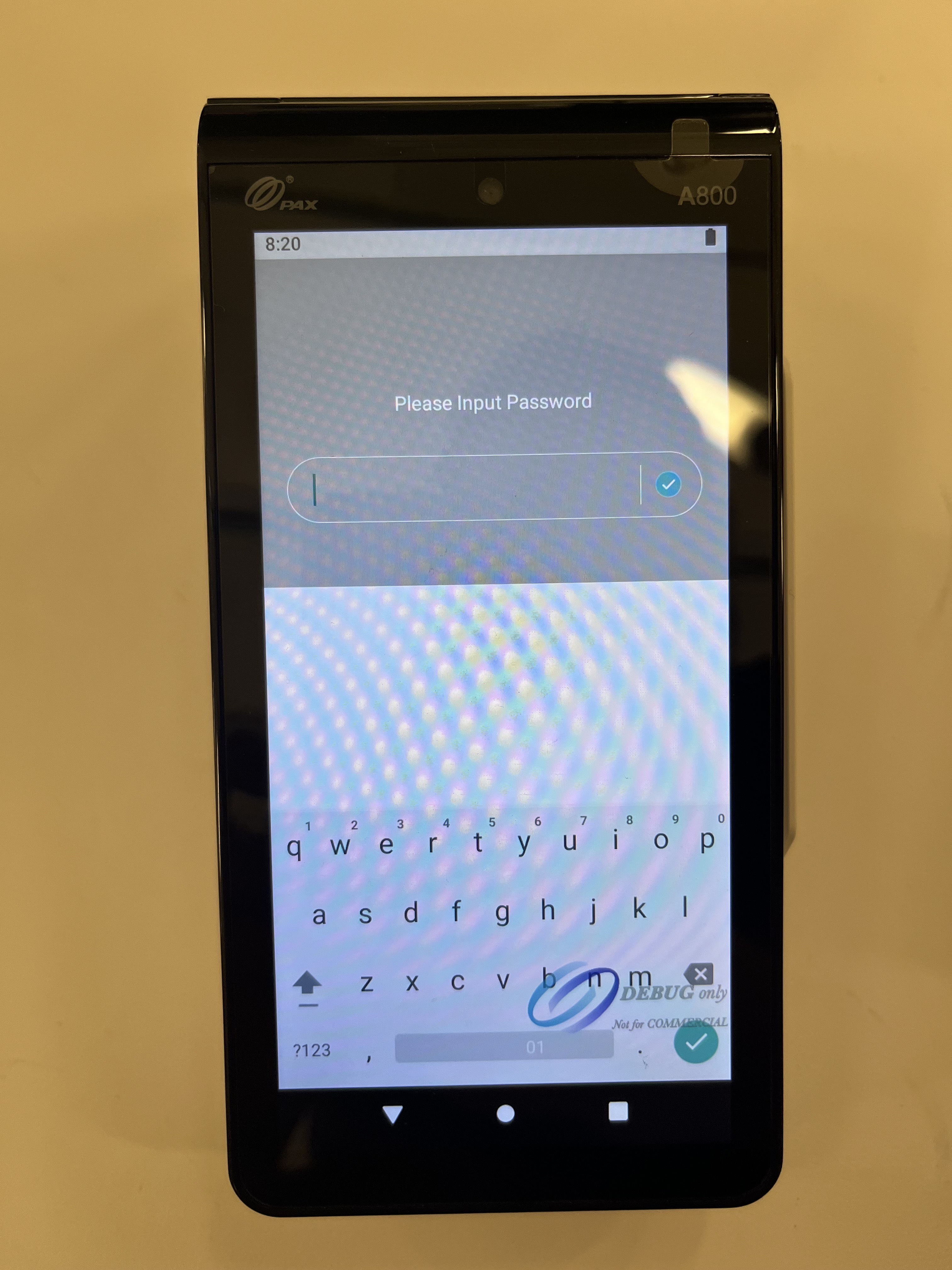
Enter the password: pax9876@@
Step 2: Select Network and Internet.
Step 3: Ensure your Wi-Fi toggle is on and then select Wi-Fi.
Step 4: Choose your network and enter your password.
Note: You are now ready to add your terminal into Archy to integrate your merchant account with Archy. Please follow the steps below to complete this process.
Set Up Credit Card Terminal in Archy
Step 1: Start by navigating to your Settings by selecting the gear icon in Archy
Step 2: Scroll down and select Payments.
Step 3: Proceed to Archy terminals.
Step 4: Click on + Add Archy Terminal. Note: For this step, you will need to make sure that your Archy terminal is on and connected to the internet or it will error out.
Step 5: Name your terminal. It could be anything like 'Front Desk'. The name is your own practice preference. Enter the model (PAX A800), and enter your serial number.
Note: The Payment app must be open to add the terminal or it will fail in Archy. The serial number will pop up on your "Activate" screen automatically in some cases.
If you do not see it, you may access the serial number on the back of the device. This is typically a 10 digit number under the barcode at the bottom. Example: S/N: 1234567890. However, the payment app must still be open.
Step 6: Click on Save & Next.
Step 7: Run a test transaction on a test patient. This transaction may be for $1.00 since this is a test run to confirm that your merchant account has integrated successfully with Archy. Archy doesn't allow a payment without an invoice creation so you may use the Add Funds to the Wallet workflow. Once your payment is added successfully, you have completed setting up your terminal in Archy.
Power Off Your Terminal
Step 1: Press and hold the power button on the left hand side of your Archy terminal.
Step 2: A power off slider will appear.
Step 3: Once the slider appears, select the power off button.
Note: We recommend you turn OFF the device overnight to charge it. This will ensure the device is fully charged in the mornings.
Due to Payment Card Industry (PCI) mandatory requirements, transactions will still produce a sound. However, you have the option to reduce the sound intensity by modifying the sound.
- Terminal thermal paper 2.25 size roll. It normally comes in a 50 ft roll.
Comments
0 comments
Please sign in to leave a comment.